How to Optimize Video Content with Advanced Processing and HLS Streaming
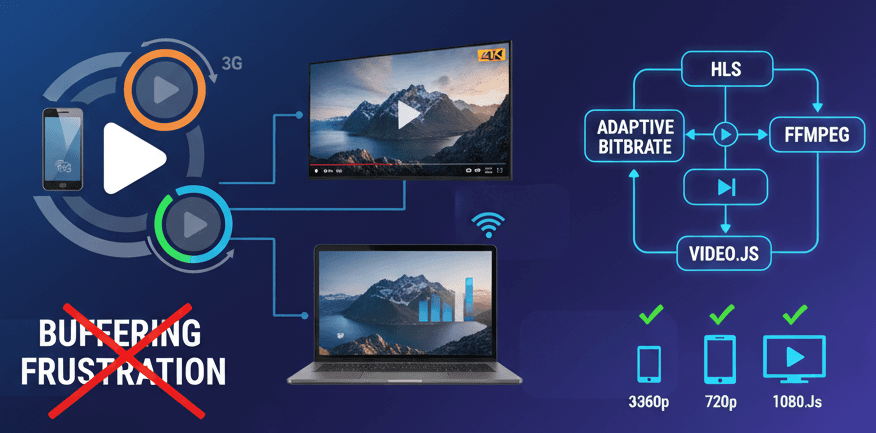
Have you ever clicked play on a video only to watch that dreaded buffering wheel spin endlessly? Or worse, the video finally loads but looks like it was filmed through a foggy window? These frustrating experiences happen because traditional video delivery uses a one-size-fits-all approach—and that simply doesn't work in today's diverse digital landscape.
Think about it: your mom watches videos on her phone over 3G while commuting. Your friend streams on a 4K TV with gigabit fiber. Your colleague might be on a laptop connected to spotty coffee shop Wi-Fi. One video file can't possibly serve all these scenarios well.
This is where HLS (HTTP Live Streaming) and adaptive bitrate streaming become game-changers. Instead of forcing everyone to download the same video file, we create multiple versions at different quality levels. The video player then intelligently switches between these versions in real-time based on network conditions. The result? Smooth playback, minimal buffering, and the best possible quality for each viewer's situation.
Let me show you exactly how to set this up.
📋 What You'll Need
Before we dive in, let's gather our tools:
- A video file: If you're just learning, start small. Video processing is computationally intensive, so a 50MB video will process much faster than a 2GB one.
- FFmpeg: The Swiss Army knife of video processing. It's free, powerful, and industry-standard.
- Node.js: We'll build a simple API to handle video uploads and processing.
- A bit of patience: Video encoding takes time, especially for higher resolutions.
🚀 Step 1: Installing FFmpeg
FFmpeg is the engine that will transform your videos. On Windows, the easiest installation method is using Chocolatey (a package manager for Windows).
First, open PowerShell as Administrator and run:
choco install ffmpeg
Once installed, verify it's working:
ffmpeg -version
You should see version information displayed. If you see an error, restart your terminal or computer.
Mac users: Use Homebrew with brew install ffmpeg
Linux users: Use apt-get install ffmpeg or yum install ffmpeg
📤 Step 2: Setting Up the Upload System
Let's build the infrastructure to handle video uploads. We'll use Multer, a Node.js middleware that makes file uploads straightforward.
Understanding the Multer Configuration
import multer from "multer";
import path from "path";
import { v4 as uuidv4 } from "uuid";

const storage = multer.diskStorage({
  destination: function (req, file, cb) {
    cb(null, "./public");
  },
  filename: function (req, file, cb) {
    cb(null, file.fieldname + "-" + uuidv4() + path.extname(file.originalname));
  },
});

const upload = multer({ storage: storage });
Let's break this down line by line:
import multer from "multer"- Brings in the Multer library for handling file uploadsimport { v4 as uuidv4 } from "uuid"- Imports a function to generate unique IDs (likea3f2b8c9-1234-5678-90ab-cdef12345678)multer.diskStorage()- Configures where and how files are saved to diskdestination: function (req, file, cb)- Specifies the folder where uploaded files go (here,./public)filename: function (req, file, cb)- Creates a unique filename to avoid overwriting existing files
The filename pattern looks like: file-a3f2b8c9-1234-5678-90ab-cdef12345678.mp4
Real-world example: Imagine you're building YouTube. When someone uploads "vacation.mp4", you don't want it to overwrite someone else's "vacation.mp4". The UUID ensures each file gets a globally unique name.
🎯 Step 3: Creating the Upload API Endpoint
Now let's create the route that processes uploaded videos:
app.post("/upload", upload.single("file"), (req, res, next) => {
  try {
    const videoId = uuidv4();
    const videoPath = req.file.path;
    const outputPath = `./public/videos/${videoId}`;
    const hlsPath = `${outputPath}/index.m3u8`;
    console.log("hlsPath", hlsPath);

    if (!fs.existsSync(outputPath)) {
      fs.mkdirSync(outputPath, { recursive: true });
    }

    const ffmpegCommand = `ffmpeg -i ${videoPath} -codec:v libx264 -codec:a aac -hls_time 10 -hls_playlist_type vod -hls_segment_filename "${outputPath}/segment%03d.ts" -start_number 0 ${hlsPath}`;

    exec(ffmpegCommand, (error, stdout, stderr) => {
      if (error) {
        console.log(`exec error: ${error}`);
      }
      console.log(`stdout: ${stdout}`);
      console.log(`stderr: ${stderr}`);
      const videoUrl = `http://localhost:${port}/public/videos/${videoId}/index.m3u8`;

      return res.json({
        message: "Video converted to HLS format",
        videoUrl: videoUrl,
        videoId: videoId,
      });
    });
  } catch (err) {
    next(err);
  }
});
🔍 Breaking Down the FFmpeg Command
The FFmpeg command is where the magic happens. Let's decode it:
ffmpeg -i ${videoPath}
-i ${videoPath}: Input file (your original video)
-codec:v libx264 -codec:a aac
-codec:v libx264: Use H.264 for video compression (universally supported)-codec:a aac: Use AAC for audio compression (high quality, efficient)
-hls_time 10
- Segments the video into 10-second chunks. Think of it like breaking a chocolate bar into pieces—each piece can be loaded independently.
-hls_playlist_type vod
vodmeans "Video on Demand" (the entire video is available, not a live stream)
-hls_segment_filename "${outputPath}/segment%03d.ts"
- Creates files like:
segment000.ts,segment001.ts,segment002.ts - The
%03dmeans "use 3 digits with leading zeros"
${hlsPath}
- Creates
index.m3u8: The master playlist that lists all video segments
📦 What Gets Generated?
After processing, your output folder looks like this:
./public/videos/abc-123-def/
  ├── index.m3u8      (playlist file)
  ├── segment000.ts   (first 10 seconds)
  ├── segment001.ts   (next 10 seconds)
  ├── segment002.ts   (next 10 seconds)
  └── ...
Real-world analogy: Think of index.m3u8 as a table of contents, and each .ts file as a chapter in a book. The video player reads the table of contents and then fetches each chapter as needed.
🎚️ Step 4: Multi-Quality Adaptive Streaming
The single-quality approach works, but adaptive streaming is where HLS truly shines. Let's create multiple quality levels so the player can switch between them based on network speed.
const { exec } = require("child_process");
const fs = require("fs");
const path = require("path");
const util = require("util");
const execPromise = util.promisify(exec);

const videoPath = "../demo.mp4";
const outputDir = "./hls";

const allQualities = [
  { name: "144p", width: 256, height: 144, vBitrate: "95k", aBitrate: "64k" },
  { name: "240p", width: 426, height: 240, vBitrate: "200k", aBitrate: "64k" },
  { name: "360p", width: 640, height: 360, vBitrate: "400k", aBitrate: "96k" },
  { name: "480p", width: 854, height: 480, vBitrate: "800k", aBitrate: "96k" },
  {
    name: "720p",
    width: 1280,
    height: 720,
    vBitrate: "1400k",
    aBitrate: "128k",
  },
  {
    name: "1080p",
    width: 1920,
    height: 1080,
    vBitrate: "2800k",
    aBitrate: "128k",
  },
  {
    name: "1440p",
    width: 2560,
    height: 1440,
    vBitrate: "6000k",
    aBitrate: "192k",
  },
  {
    name: "2160p",
    width: 3840,
    height: 2160,
    vBitrate: "12000k",
    aBitrate: "192k",
  },
];
📊 Understanding Quality Levels
Each quality level has four key parameters:
| Quality | Resolution | Video Bitrate | Audio Bitrate | Use Case |
|---|---|---|---|---|
| 144p | 256×144 | 95k | 64k | Ultra-slow connections, data saving |
| 360p | 640×360 | 400k | 96k | Standard mobile, average WiFi |
| 720p | 1280×720 | 1400k | 128k | HD viewing, good connections |
| 1080p | 1920×1080 | 2800k | 128k | Full HD, fast connections |
| 2160p | 3840×2160 | 12000k | 192k | 4K viewing, excellent connections |
Bitrate is the amount of data processed per second. Higher bitrate = better quality but larger file size.
Real-world example: Netflix uses this exact approach. When you're on slow WiFi, it drops to 360p. When your connection improves, it seamlessly jumps to 1080p. You probably never even notice the switches.
🧠 Smart Quality Detection
async function getVideoResolution(videoPath) {
  const cmd = `ffprobe -v error -select_streams v:0 -show_entries stream=width,height -of csv=p=0:s=x ${videoPath}`;
  const { stdout } = await execPromise(cmd);
  const [width, height] = stdout.trim().split("x").map(Number);
  return { width, height };
}
This function detects your source video's resolution. Why does this matter?
If someone uploads a 480p video, there's no point creating 1080p or 4K versions—you can't add quality that isn't there. This function ensures we only generate qualities up to the source resolution.
⚙️ Encoding Each Quality
async function encodeQuality(q) {
  const qualityDir = path.join(outputDir, q.name);
  if (!fs.existsSync(qualityDir)) fs.mkdirSync(qualityDir, { recursive: true });

  const cmd = `ffmpeg -y -i ${videoPath} \
    -vf "scale=w=${q.width}:h=${
      q.height
    }:force_original_aspect_ratio=decrease:force_divisible_by=2" \
    -c:v ${getVideoCodec()} -b:v ${q.vBitrate} \
    -c:a aac -b:a ${q.aBitrate} \
    -f hls -hls_time 4 -hls_list_size 0 -hls_playlist_type event -hls_flags append_list+independent_segments \
    -hls_segment_filename "${qualityDir}/seg_%03d.ts" \
    "${qualityDir}/index.m3u8"`;

  console.log(`Encoding ${q.name}...`);

  return new Promise((resolve, reject) => {
    exec(cmd, (error, stdout, stderr) => {
      if (error) return reject(error);
      console.log(`${q.name} done!`);

      const readyQualities = allQualities.filter((x) =>
        fs.existsSync(path.join(outputDir, x.name, "index.m3u8"))
      );
      const masterContent = buildMasterPlaylist(readyQualities);
      fs.writeFileSync(path.join(outputDir, "master.m3u8"), masterContent);

      resolve();
    });
  });
}
Key command breakdown:
-vf "scale=w=${q.width}:h=${q.height}": Resizes video to target resolutionforce_original_aspect_ratio=decrease: Prevents stretching (maintains 16:9, 4:3, etc.)force_divisible_by=2: Ensures dimensions are even numbers (required by H.264)-b:v ${q.vBitrate}: Sets target video bitrate-hls_time 4: Creates 4-second segments (shorter = faster quality switching)
🎼 Building the Master Playlist
function buildMasterPlaylist(existingQualities) {
  let content = "#EXTM3U\n#EXT-X-VERSION:3\n";
  existingQualities.forEach((q) => {
    content += `#EXT-X-STREAM-INF:BANDWIDTH=${
      parseInt(q.vBitrate) * 1000
    },RESOLUTION=${q.width}x${q.height}\n`;
    content += `${q.name}/index.m3u8\n`;
  });
  return content;
}
The master.m3u8 file is the orchestrator. It tells the video player: "Here are all available qualities. Pick the best one based on the viewer's bandwidth."
A generated master playlist looks like:
#EXTM3U
#EXT-X-VERSION:3
#EXT-X-STREAM-INF:BANDWIDTH=400000,RESOLUTION=640x360
360p/index.m3u8
#EXT-X-STREAM-INF:BANDWIDTH=1400000,RESOLUTION=1280x720
720p/index.m3u8
#EXT-X-STREAM-INF:BANDWIDTH=2800000,RESOLUTION=1920x1080
1080p/index.m3u8
▶️ Step 5: Playing HLS Videos with Video.js
Now that we have our adaptive stream, let's build a player. We'll use Video.js, a popular open-source HTML5 video player.
Basic HTML Setup
<!DOCTYPE html>
<html lang="en">
  <head>
    <meta charset="UTF-8" />
    <title>Video.js HLS Player</title>
    <link href="https://vjs.zencdn.net/8.10.0/video-js.css" rel="stylesheet" />
  </head>
  <body>
    <video
      id="my-video"
      class="video-js vjs-default-skin"
      controls
      preload="auto"
      width="1000"
      height="562"
    >
      <source src="http://localhost:3000/master.m3u8" type="application/x-mpegURL" />
    </video>

    <script src="https://vjs.zencdn.net/8.10.0/video.min.js"></script>
    <script src="https://cdn.jsdelivr.net/npm/@videojs/http-streaming@3.10.0/dist/videojs-http-streaming.min.js"></script>
  </body>
</html>
Initializing the Player with HLS Support
var player = videojs("my-video", {
  responsive: true,
  fluid: true,
  html5: {
    hls: {
      enableLowInitialPlaylist: true,
      smoothQualityChange: true,
      overrideNative: true,
    },
  },
  sources: [
    {
      src: "http://localhost:3000/master.m3u8",
      type: "application/x-mpegURL",
    },
  ],
});
Configuration explained:
responsive: true: Player adapts to container sizeenableLowInitialPlaylist: true: Starts with lower quality for faster initial playbacksmoothQualityChange: true: Seamlessly transitions between qualities without interruptionoverrideNative: true: Uses Video.js's HLS implementation (more consistent across browsers)
🎮 Manual Quality Selection
function switchQuality(qualityIndex) {
  const qualities = getAvailableQualities();

  if (qualityIndex === "auto") {
    qualities.forEach((quality) => {
      quality.enabled = true;
    });
    console.log("Enabled automatic quality switching");
  } else if (qualities[qualityIndex]) {
    qualities.forEach((quality) => {
      quality.enabled = false;
    });
    qualities[qualityIndex].enabled = true;
    console.log(`Switched to quality: ${qualities[qualityIndex].height}p`);
  }
}
This allows users to override automatic selection. Maybe they're on a limited data plan and want to lock to 360p. Or they have unlimited data and want 1080p no matter what.
🔄 The Complete Workflow
Let me tie everything together with a step-by-step flow:
- User uploads video → Multer saves it to disk
- FFmpeg detects source resolution → Determines which qualities to encode
- FFmpeg encodes multiple qualities → Creates 360p, 720p, 1080p versions
- Master playlist is generated → Lists all available qualities
- User requests video → Player fetches
master.m3u8 - Player starts with low quality → Fast initial load
- Player monitors bandwidth → Measures current network speed
- Player switches quality adaptively → Upgrades/downgrades as needed
⚡ Performance Tips
1. Use GPU Acceleration
If you have an NVIDIA GPU, use hardware encoding:
function getVideoCodec() {
  return process.env.USE_GPU ? "h264_nvenc" : "libx264";
}
Hardware encoding can be 5-10x faster than CPU encoding.
2. Process in Parallel
For production, use a job queue like Bull or BullMQ:
const queue = new Queue("video-processing");

queue.process(async (job) => {
  const { videoPath, outputPath } = job.data;
  await encodeQuality(videoPath, outputPath);
});
3. Use CDN for Delivery
Store your HLS files on a CDN like Cloudflare or AWS CloudFront. This ensures:
- Lower latency (content served from nearby servers)
- Higher reliability (CDNs handle traffic spikes)
- Reduced server load (your server doesn't serve videos directly)
⚠️ Common Pitfalls to Avoid
❌ Don't encode qualities higher than source: You can't upscale 480p to 1080p and expect quality improvement
❌ Don't use 30-second segments: Shorter segments (4-10 seconds) enable faster quality switching
❌ Don't forget CORS headers: If serving from a different domain, enable CORS
❌ Don't skip error handling: Video processing can fail—always handle errors gracefully
Final Thoughts
HLS adaptive streaming transforms video delivery from a one-size-fits-all approach to a personalized experience for each viewer. Whether someone's on a train with spotty 3G or at home with gigabit fiber, they get the best possible experience.
The setup requires some initial effort, but the payoff is enormous: happier users, lower bounce rates, and a professional-grade video experience that rivals platforms like YouTube and Netflix.
Start small, test thoroughly, and scale as your needs grow. Your users will thank you—even if they never realize how much engineering magic is happening behind the scenes.
💡 Remember: The best technology is invisible. When your video just works—no buffering, no quality drops, no frustration—that's when you know you've succeeded. Great user experience isn't about showing off technical prowess; it's about removing friction so seamlessly that users never think about the technology at all.
🎬 HLS Streaming Architecture
graph TD
    A[Original Video Upload] -->|Multer| B[Save to Disk]
    B --> C[FFmpeg Processing]
    C --> D{Detect Source Resolution}
    D --> E[Encode 360p]
    D --> F[Encode 720p]
    D --> G[Encode 1080p]
    D --> H[Encode 2160p if source allows]

    E --> I[360p Segments]
    F --> J[720p Segments]
    G --> K[1080p Segments]
    H --> L[2160p Segments]

    I --> M[Create index.m3u8 for each quality]
    J --> M
    K --> M
    L --> M

    M --> N[Generate master.m3u8]
    N --> O[CDN/Server Storage]

    O --> P[User Requests Video]
    P --> Q[Video.js Player]
    Q --> R{Check Bandwidth}

    R -->|Slow| S[Stream 360p]
    R -->|Medium| T[Stream 720p]
    R -->|Fast| U[Stream 1080p]

    S --> V[Monitor Network]
    T --> V
    U --> V

    V -->|Bandwidth Increases| W[Switch to Higher Quality]
    V -->|Bandwidth Decreases| X[Switch to Lower Quality]

    W --> R
    X --> R
📚 Additional Resources
- FFmpeg Official Documentation
- HLS Protocol Specification (Apple)
- Video.js Documentation
- HTTP Live Streaming Best Practices
"In the world of streaming, perfection is not when there's nothing more to add, but when there's nothing left that interrupts the experience." — Adapted from Antoine de Saint-Exupéry
Happy Streaming! 🎥✨